
A few days ago I created a PowerPoint slide deck on gamification that I published on SlideShare. However, an animated introduction of the title was created to mimic the game of Tetris as shapes would fall down and form the name of the title. This post discusses the creative process to replicate the same effect for your presentations. As a bonus, I’ve also embedded a YouTube video explaining it.
Create the Shapes
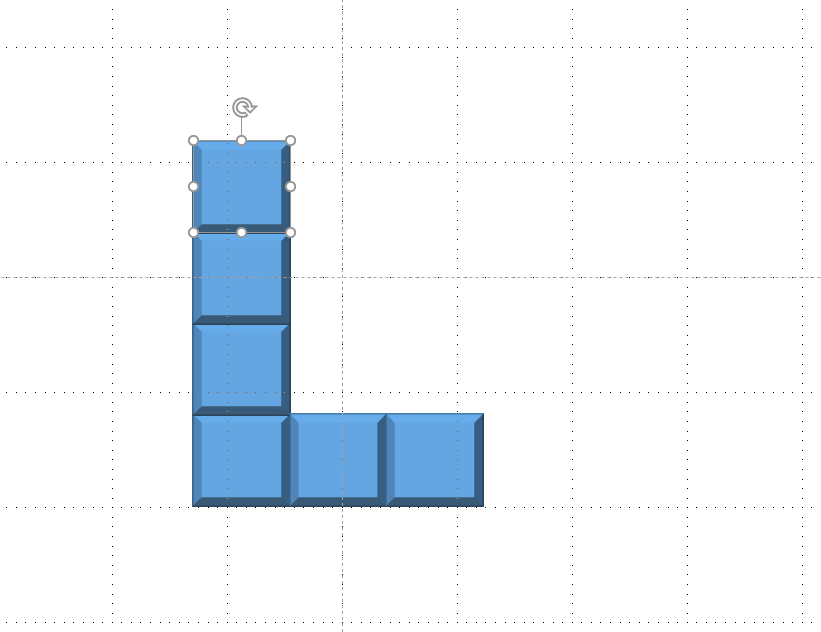
The first step is to start creating the various Tetris shapes or blocks you would like to use. The process is really simple. It all starts with one rectangle or square shape with added bevel effects.

PowerPoint Duplication Shorcut (CTRL+D)
After you are done applying the effects to the first shape, press the CTRL + D keys on your keyboard to duplicate the shape. Click and drag it to the correct position and repeat these motions until you have the desired number of shapes.
Group the Shapes
Deselect all by clicking off the slide and click and drag over the shapes to group them as seen below.
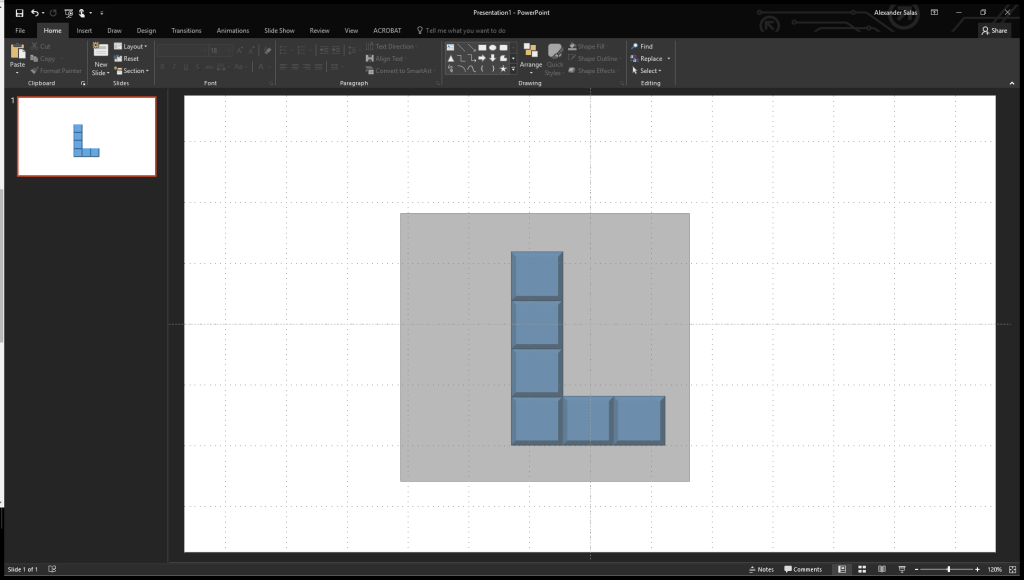
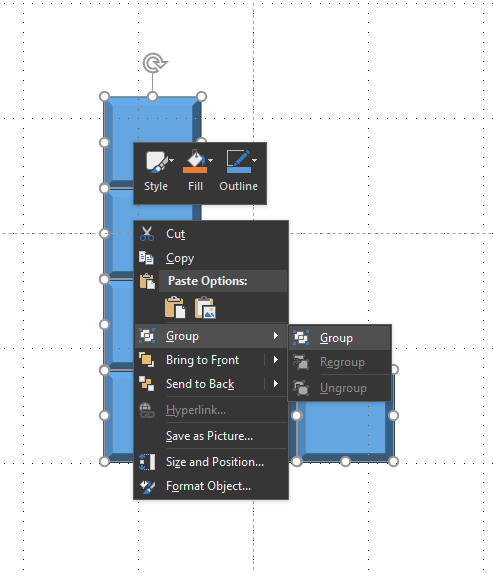
Right-click and select Group to group all selected shapes into one. After completing this step, you should be able to move the shapes as if they were one Tetris block.
Watch the Video
Watch the video below where I walk you through the animation process once the shapes are created. The trick is to use each slide as a frame of animation by removing the default transition properties of Advance on Mouse Click and reducing the timing to simulate motion.
Wrapping it Up
In this post we explored how to add bevel effects to shapes to make them look like Tetris blocks. We also explored how to group them by duplication and click and drag selection. Finally, the process of how to mimic the Tetris animation of falling blocks by modifying the transition properties of slides.